

15Dec
ESP32 with 1.8″ TFT LCD Display (ST7735S)
🔧 1. Hardware Overview: 1.8″ TFT Display
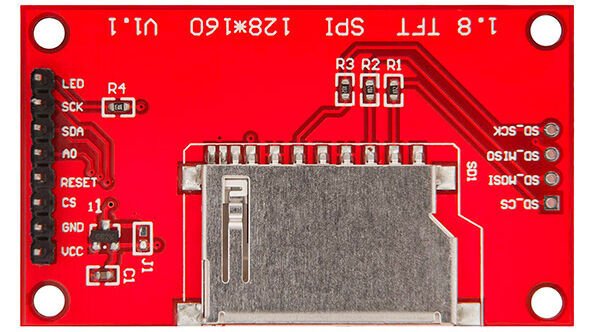
Most 1.8″ TFT modules are based on the ST7735 driver and communicate using the SPI (Serial Peripheral Interface) protocol.
📦 Key Features:
- Resolution: 128×160 pixels
- Interface: SPI
- Color depth: 16-bit (65K colors)
- Driver IC: ST7735 / ST7735S
- Operating voltage: 3.3V logic level (some have onboard regulators for 5V compatibility)
- Pins:
- VCC: Power (3.3V or 5V depending on module)
- GND: Ground
- SCL/SCK: SPI Clock
- SDA/MOSI: SPI Data
- RES/RST: Reset
- DC/A0: Data/Command selector
- CS: Chip Select
🔌 2. Wiring TFT to ESP32
Assuming the display uses SPI and ESP32’s VSPI (default) pins:
| TFT Display | ESP32 Pin |
|---|---|
| VCC | 5V |
| GND | GND |
| SCL (CLK) | GPIO 18 |
| SDA (MOSI) | GPIO 23 |
| RES | GPIO 15 |
| DC | GPIO 32 |
| CS | GPIO 5 |
✅ Always check your specific TFT module’s datasheet; some modules use different pin labels.
📦 3. Libraries Required (Arduino IDE)
Install via Library Manager:
Adafruit GFX LibraryAdafruit ST7735 and ST7789 Library
Go to Sketch > Include Library > Manage Libraries, search and install the two libraries above.
🧪 6. Common Applications
- Weather station UI
- Sensor dashboard (e.g., DHT11, BMP180, etc.)
- IoT device screen
- Menu interface for user control
- Game/animation interface
⚠️ 7. Important Tips
- Power carefully: If your module has no 3.3V regulator, do not use 5V.
- Brightness control: Some modules have LED backlight pins for brightness via PWM.
- Performance: ESP32 handles TFTs much better than Arduino Uno due to faster SPI and more memory.
HOW TO OPERATE

#include <Adafruit_GFX.h>
#include<Adafruit_ST7735.h>
#include <SPI.h>

// | Value | Orientation                   |
// | ----- | ----------------------------- |
// | 0     | Portrait (default)            |
// | 1     | Landscape (clockwise)         |
// | 2     | Portrait (upside down)        |
// | 3     | Landscape (counter-clockwise) |
// tft.initR(INITR_BLACKTAB);
// tft.setRotation(1); // rotate display


// Pin definitions for ESP32
#define TFT_CS     5
#define TFT_RST   15
#define TFT_DC    32
#define TFT_MOSI  23
#define TFT_CLK   18

Adafruit_ST7735 tft = Adafruit_ST7735(TFT_CS, TFT_DC, TFT_MOSI, TFT_CLK, TFT_RST);

void setup() {
  Serial.begin(9600);
  Serial.println("DHTxx test!");
  tft.initR(INITR_BLACKTAB); // For 1.8" TFT with black tab
  tft.fillScreen(ST77XX_BLACK);
   dht.begin();
 tft.setRotation(1);
  tft.setCursor(45, 60);             // Set position on screen
  tft.setTextColor(ST77XX_BLUE);    // Text color
  tft.setTextSize(2);                // Scale text size
  tft.println("Hello");

  tft.fillScreen(ST77XX_BLACK);
  tft.drawTriangle(30, 30, 60, 90, 90, 30, ST77XX_GREEN);

       // Print text

}

void loop() {

   for (int x = 0; x < 128; x += 2) { // Move from left to right
    tft.fillScreen(ST77XX_BLACK);   // Clear screen

    // Draw triangle at new position
    tft.fillTriangle(x, 50, x + 15, 80, x + 50, 50, ST77XX_RED);

    delay(50);
}
}


Leave a Reply
You must be logged in to post a comment.